Pages - Menu

Showing posts with label Git. Show all posts

Git - Moving Code between Repositories Changing Commit History

Scenario

As part of our microservices migration, we recently did a lot of code moving and splitting from one monolithic repository into multiple smaller repositories.

Perhaps it is easier to just copy and paste files and done with, but if we want to retain the commit history as we move, then it will take a little extra efforts.

Steps

Create New Repository

Firstly, we need to create a new repository. We could do that in Azure DevOps.


Move a subfolder (with commit history) to a different repository


Preparing local folders
# Clone the old repo locally.
$ mkdir new_repo_folder
$ cd new_repo_folder
$ git clone old_repo_url
$ cd old_repo_folder

Filter out by subfolder
# If you are moving subfolder of subfolder, we need to use slash as a path delimiter even in Windows.
$ git filter-branch --subdirectory-filter another_subfolder_if_any/subfolder_to_move -- --all
$ git remote -v                                                    
$ git remote set-url origin new_repo_url                      
$ git remote -v                                                    
$ git push origin

At this point, this is now completed. All the codes in the subfolder are moved to the new repository with all the history. However the new repository will have a local path new_repo_folder/old_repo_folder/code. If we want it to look like new_repo_folder/code, we can just clean it up by copy and paste.

Extra

As we were trying out and moving codes around, I have also encountered some rare scenarios and learnt some 'rarely' needed commands.

Cherry pick commits from another repository to a subfolder locally

# go to dest folder
$ git clone dest_repo_url
$ cd dest
$ git checkout dest-branch
$ git checkout -b merge-src-to-dest

# add the copy source repo as new remote
$ git remote add src src_repo_url
$ git remote -v
$ git fetch src

# Specify remote name when cherry pick, and supply subtree parameter to apply to subfolder
# tip of the branch
$ git cherry-pick -Xsubtree="subfolders/more-subfolder" src/remote-branch-name

# 4th commit from the branch
$ git cherry-pick -Xsubtree="subfolders/more-subfolder" src/remote-branch-name~4

# commit hash don't require remote-branch-name, but src must be fetched
$ git cherry-pick -n -Xsubtree="subfolders/more-subfolder" commit-hash

# git cherry pick of a merge (eg. merged pull request)
$ git cherry-pick -Xsubtree="subfolders/more-subfolder" src/remote-branch-name -m 1

# clean up
$ git remote rm src

Other Commands

# Rename a remote branch name
$ git branch -m old_branch new_branch
$ git push origin new_branch

# but we still point to the remote old_branch in .git
[branch "new_branch"]
 remote = origin
 merge = refs/heads/old_branch

# Create 'new_branch' and set up track remote at the same time.
$ git push origin -u new_branch

# git push to a different remote branch
$ git push origin src-branch:target-branch
$ git push origin branch1:branch2

How to Install posh-git Behind Firewall

Scope

Trying to install posh-git following the installation note, but getting some error.


Prerequsite

Powershell version 2 or above. Version 5 can be downloaded here.

$PSVersionTable.PSVersion

Major  Minor  Build  Revision
-----  -----  -----  --------
5      0      10586  117

Script execution policy must be set to either RemoteSigned or Unrestricted.

$ Set-ExecutionPolicy RemoteSigned -Scope CurrentUser -Confirm

Troubleshooting

$ Get-PSRepository
WARNING: Unable to find module repositories.

These errors are indicating that there are no repository available. I have installed posh-git many times and this doesn't look normal to me, since I am also having some proxy issue with my new machine, I am suspecting it could be a firewall / network issue.

I tried some of this, but not much luck.


WARNINGS: Do not use npm install -g posh-git. It is a replica of the original posh-git but not the same package as the genuine one. Look at the package note, it stated that "This is a new project, it's currently working only on Linux..." and the author is not dahlbyk.

$ Install-PackageProvider -Name NuGet -MinimumVersion 2.8.5.201 -Verbose -Force

VERBOSE: MSG:UnableToDownload «https://go.microsoft.com/fwlink/?LinkID=627338&clcid=0x409» «»
VERBOSE: Cannot download link 'https://go.microsoft.com/fwlink/?LinkID=627338&clcid=0x409', retrying for '2' more times
VERBOSE: MSG:UnableToDownload «https://go.microsoft.com/fwlink/?LinkID=627338&clcid=0x409» «»
VERBOSE: Cannot download link 'https://go.microsoft.com/fwlink/?LinkID=627338&clcid=0x409', retrying for '1' more times
VERBOSE: MSG:UnableToDownload «https://go.microsoft.com/fwlink/?LinkID=627338&clcid=0x409» «»
VERBOSE: Cannot download link 'https://go.microsoft.com/fwlink/?LinkID=627338&clcid=0x409', retrying for '0' more times
WARNING: Unable to download the list of available providers. Check your internet connection.

$ choco install poshgit
# I cannot even get chocolatey to install because of the same proxy issue... so not an option

$ (new-object Net.WebClient).DownloadString("http://psget.net/GetPsGet.ps1") | iex install-module posh-git

Exception calling "DownloadString" with "1" argument(s): "The remote server returned an error: (407) Proxy Authentication Required."

Solution

Finally, I went back to the basics, I bypassed the firewall but a direct git clone to the source code and solved the issue.

$ git clone https://github.com/dahlbyk/posh-git.git
$ .\posh-git\install.ps1

Extra

I found the default color was a little too dark against the dark background color, so I made some changes in ~/.git/config to make it easier to read.

[color]
    ui = true 
[color "status"]
    changed = magenta bold
    untracked = yellow bold

Better contrast after changing the color

Git Ignore Conflicts During Rebase

Scenario

During a git rebase, I am getting conflicts on artifacts that I am not interested in merging.

For example, I am only interest in merging scss files but not the css, because the css is already minified and will be hard to merge via mergetool. A more sensible way is to ignore the merge and recompile the css at the end of the rebase.

Code

On a typical git rebase master, you may get some conflicts like this.


According to advanced git article, this can be achieved by using skip.

$ git rebase --skip

Git will try to do an auto-merge on the files and leave dirty files in the folder. From this point, we can recompile our css and git add them.

Conclusion

If your code base require you to check in compiled artifacts, highly recommended to do that as a separate commit. That will make your life easier on merge and rebase.


Getting Started with Git 101

Scope

I have used many SCM in the past. VSS, SVN, TFS, ClearCase, Mercurial etc... There are so many of them yet they are so similar, so that they are not even worthy for a spot in a resume.

However, git was a little more challenging to me as their structures and architectures are different. I have now used git for just over a year now, and put the followings together that covered what I believe is a good starting point to learn git commands.

Technical

Config

I use posh-git and found the default dark red color was a bit hard to read against a dark background color in Windows console. I changed them to yellow and magenta by updating the ~/.git/config.

[color]
    ui = true 
[color "status"]
    changed = magenta bold
    untracked = yellow bold

Settings

# Change a global setting
$ git config --global --edit

# Change editor to notepad globally
$ git config --global core.editor notepad

# Setup git diff / merge tool globally
# for example, if we are using p4merge as a diff / merge tool.
$ git config --global diff.tool p4merge
$ git config --global merge.tool p4merge

# Git merge generates unwanted .orig file
$ git config --global mergetool.keepBackup false

Basic Changes

# Check pending check-in status
$ git status

# Get latest files
$ git pull

# Change branch
$ git checkout <branchName>

# Add files for pending check in
$ git add <filename>

# Undo a git add
$ git reset <filename>

# Delete files for pending check in
$ git rm <filename>

# Undo pending delete files 
$ git reset head <filename>

# Amend last commit
$ git commit --amend

# Undo commit
# This will reset the the branch to a previous commit 
$ git reset HEAD~

# Hard reset is a potentially dangerous command
# Changes are destructive and may not be recovered
$ git reset --hard <commit-id>

# a force push will force the origin to point to the same commit as local
$ git push origin HEAD --force

# Discard changes in working directory
$ git checkout <filename>

# Discard untracked files in working directory
# Double check what to delete
$ git clean -f -n

# The actual deleting
$ git clean -f 

# Discard untracked folders in working directory
$ git clean -df 

Stash


It is similar to shelve in TFS.

# All unstaged and staged dirty files will be "stashed", 
# and the working directory will be cleaned.
$ git stash

# shows the list of stash
$ git stash list

# shows content of stash
$ git stash show -p

# retrieve then remove changes from the stash 
$ git stash pop

# apply changes (and not removing) from the stash
$ git stash apply

# remove changes from the stash
$ git stash drop

# remove all stash history
$ git stash clear

Branch

# Delete a local branch
$ git branch -d <branchName>

# Delete a remote branch
$ git push origin --delete <branchName>

# Rename current branch
$ git branch -m <newname>

Merge

# Merge a branch from source to destination
$ git checkout destination-branch
$ git merge source-branch

# Resolve a merge conflict
$ git mergetool

# Resolve merge conflict with theirs or ours preference during a conflicted state.
# Take their changes
$ git checkout --theirs *
$ git add *

# Take our changes
$ git checkout --ours *
$ git add *

Tag


# listing tags
$ git tag
  
# add tag
$ git tag -a <tagName> -m "A message for tagging"
  
# push local tags to remote
$ git push origin --tags

# branch out from a tag
$ git checkout -b <newBranchName> <fromTag>

Rebase

# Rebase branch from parent branch
$ git rebase <parentBranch>

# Conflict during rebase
$ git rebase --[abort|skip|continue]

Fork and Submodule

# Add a remote repo to current repo as a subfolder
$ git submodule add <gitRepo>
  
# Get latest in submodule
$ git submodule update

Bitbucket Continuous Integration with Bitbucket Pipelines

Scope

We use Bitbucket as our SCM and other few Atlassian products in our development team. Happy to say that I am pleased with the tools that it made our daily works very productive and hassle free. 

Recently, I am looking into a CICD solution for our deployment process. I have already previously Setting Up Jenkins for GitHubSetting Up Octopus Deploy for Jenkins with nopCommerce Projects or Setup Continuous Integration with Visual Studio Online. I like the design of Octopus Deploy, but given we are now happily living with our Atlassian suite, I want to see what the Bitbucket Pipelines (formerly Bamboo) can offer me. 

I just signed up for the Bitbucket Pipelines Beta and already received the beta invitation within about 6 hours :)


Goal

  • Setup and integrate Bamboo with Bitbucket.
  • Explore possibility to automatically run the Demandware Grunt Build Suite when we commit to master.

Setup

I clicked the link to install the Bitbucket Pipelines add-on.
Went through a simple setup procedure and enabled it in my repository.


It adds a Pipelines link in my repository.

Going through the wiki to configure the bitbucket-pipelines yml.

It is essential to understand the Docker Image used by Bitbucket pipelines. The default image uses ubuntu and is good enough in our scenario.

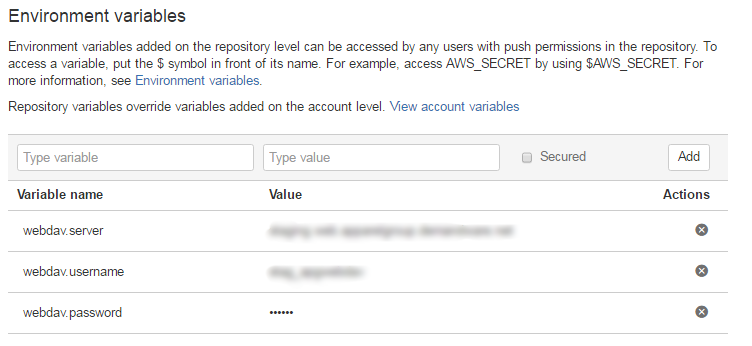
In the setting tab, we are able to setup environment variables for username and password.


We created a bitbucket-pipelines.yml script in the root folder.


Check-ins to the master will trigger the Bamboo to run the build job and script.


Thoughts

I have not had much chance to explore further, but it looks quite promising and does what I wanted. I like the fact that it is tightly integrated with our bitbucket so I do not need to login to another service, the setup was simple and straightforward.

"Build servers build" - Bitbucket Pipeline is a CI server and not a CICD server. We will leverage Bitbucket Pipelines for our continuous integration and our Demandware Business Manager for deployment purpose. I am pleased with the Bamboo Pipelines, this should work well and fits in our CICD strategy.


Git - How to Handle Emergency Deploy to Live Environment

Master always have our latest changes in our development and could be dirty and not production worthy. In order for us to do an emergency stable deploy to our live environment, it can be achieved as follow.


  1. Suppose we have our Master M. On our last well known tag called mytag deployed to our live environment.
  2. Subsequently C1 and C2 changes are commited to our Master.
  3. And, we have an emergency deployment required for C3 change that needs to be pushed to live with out C1 and C2.
This can be achieved by the following.


# branch out to master-e from mytag
$ git checkout -b master-e mytag

# After committing change C3 to our new branch, we are then good for live deployment.
# Last thing to do is to apply C3 to Master Origin, so that our next deploy will have C3
# This can be achieved by a simple merge.
$ git checkout master
$ git merge master-e

The new branch master-e is then kept until the next master deploy, if we need other emergency deploys before our next master deploy, we can reuse master-e.

Selectively prevent git push when using multiple git remote

I have the following git remote in my local.

$ git remote -v
dw      https://username@bitbucket.org/demandware/build-suite.git (fetch)
dw      https://username@bitbucket.org/demandware/build-suite.git (push)
origin  https://username@bitbucket.org/apgco/build-suite.git (fetch)
origin  https://username@bitbucket.org/apgco/build-suite.git (push)

By default, a git pull or push will connect to both remotes. I want to fetch from muliple remotes but only push to origin.

I override the push location by running this.

$ git remote set-url --push dw no-push

Now a git push will not push to dw.

$ git remote set-url --push dw no-push
dw      https://username@bitbucket.org/demandware/build-suite.git (fetch)
dw      no-push (push)
origin  https://username@bitbucket.org/apgco/build-suite.git (fetch)
origin  https://username@bitbucket.org/apgco/build-suite.git (push)

Further information from the git remote commands.

Setting Up Jenkins for GitHub


Scope

Previously, I have setup Jenkins with TFS without much issues. This time I am setting up Jenkins to work with GitHub.

Git

We will need to install GitHub Plugin on our Jenkins server. We can verify our installation from Manage Jenkins -> Manage Plugins.


Then, we will need to install the Git Executable from git-scm.

We then need to setup our Git via Manage Jenkins -> Configure System -> Git -> Git Installations -> Path to Git executable.


We will create a Jenkins Job fill in the Source Code Management information similar to follow.


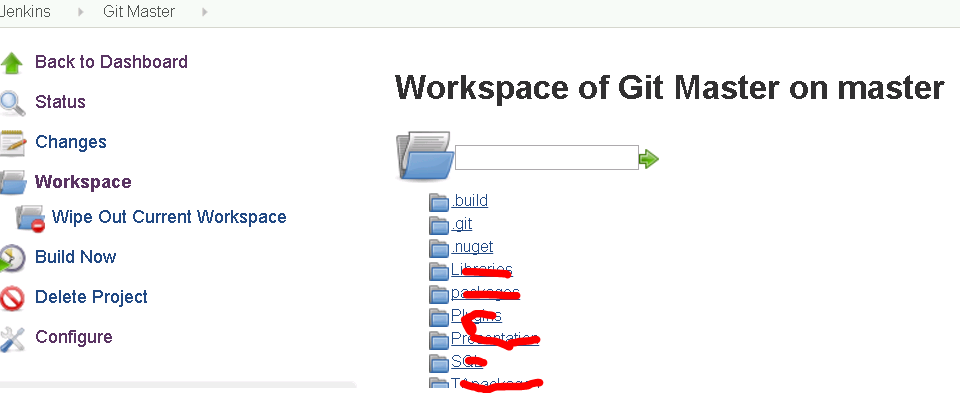
Test our build job to make sure we can get all source code in the workspace of our Jenkins server before we move on to the next stage.


MSBuild

After setting up our job to successfully clone from the Git repository, we will now set up our build process as part of our continuous integration.

Manage Jenkins -> Configure System -> MSBuild


Notice there is a warning about MSBuild.exe is not a directory. If we omit the executable part, we will get an error like the following. I believe this is minor bug in Jenkins. That's why it is always important to check the Console Output to see what the error is.


Then we set up our build job.


Troubleshooting

.Net 4.5.1

I have encountered the some errors about .Net 4.5.1 not found.

C:\Windows\Microsoft.NET\Framework\v4.0.30319\Microsoft.Common.targets(983,5): warning MSB3644: The reference assemblies for framework ".NETFramework,Version=v4.5.1" were not found.

I tried to download the Targeting .Net Platforms but I am still getting the same error.

Until I found this solution. I just copied the reference aseemblies from my dev machine to our Jenkins server with the exact same location.

C:\Program Files (x86)\Reference Assemblies\Microsoft\Framework\.NETFramework\v4.5.1

VS2012

error MSB4019: The imported project "C:\Program Files (x86)\MSBuild\Microsoft\VisualStudio\v11.0\WebApplications\Microsoft.WebApplication.targets" was not found.

Our projects were upgraded from VS2012 to 2013, and there seems an issue to do with the extra properties in the .csproj file.

The short fix is to specify the VisualStudioVersion parameter to MSBuild.

Manage Jenkins -> Configure System -> MSBuild


Or the long fix to clean the .csproj files.

NuGet

error : The build restored NuGet packages. Build the project again to include these packages in the build.

This reminds me one of the NuGet issue we had when integrating Jenkins with VSO. However, a perfect solution does not always solve the problem in an imperfect world. That's because our current process do not Restore Nuget Packages the Right Way.

Thanks to Jenkins, there is a workaround for it. We can add a windows command process before getting into the MSBuild process by using a Windows batch command.

C:\Tools\nuget.exe restore NopCommerce.sln


Conclusion

Had a fun time to set all this up (again). Plus one to our Joel Test score!


Contribute to Open Source nopCommerce project via Git

Scope

Since nopCommerce 3.4, the project is now moved from Mercurial to Git. The following shows a little example on how to do it. In this example, I am going to add a field in the DiscountBoxModel so that I can display different color if the discount is applied sucessfully or not. The fork is here.

Codeplex

Fork and pull request were previously discussed here.
http://tech.sunnyw.net/2013/11/contribute-to-mercurial-in-simple-steps.html

Git

Clone

After we fork, the clone command will get latest from remote repository to the local directory.

$ git clone https://git01.codeplex.com/forks/swon/discountboxisapplied
C:\tfs\Nop34> git clone https://git01.codeplex.com/forks/swon/discountboxisapplied
Cloning into 'discountboxisapplied'...
remote: Counting objects: 111111, done.
remote: Compressing objects: 100% (30586/30586), done.
Receiving objects: 100% (111111/111111), 257.70 MiB | 706.00 KiB/s, done.
emote: Total 111111 (delta 81017), reused 107610 (delta 78287)
Resolving deltas: 100% (81017/81017), done.
Checking connectivity... done
Checking out files: 100% (5332/5332), done.
We can verify by ls that we now have the files in local.

$ ls discountboxisapplied
    Directory: C:\tfs\Nop34\discountboxisapplied


Mode                LastWriteTime     Length Name
----                -------------     ------ ----
d----         1/09/2014   5:22 PM            src
d----         1/09/2014   5:19 PM            upgradescripts
-a---         1/09/2014   5:19 PM       2473 .gitignore
-a---         1/09/2014   5:19 PM        980 README.md

Status

After I made some changes to my files in local, the status command will show me the pending changes.

$ git status
# On branch master
# Changes not staged for commit:
#   (use "git add <file>..." to update what will be committed)
#   (use "git checkout -- <file>..." to discard changes in working directory)
#
#       modified:   src/Presentation/Nop.Web/Controllers/ShoppingCartController.cs
#       modified:   src/Presentation/Nop.Web/Models/ShoppingCart/ShoppingCartModel.cs
#       modified:   src/Presentation/Nop.Web/Nop.Web.csproj
#       modified:   src/Presentation/Nop.Web/Themes/DefaultClean/Content/styles.css
#       modified:   src/Presentation/Nop.Web/Views/ShoppingCart/_DiscountBox.cshtml
#
no changes added to commit (use "git add" and/or "git commit -a")

Commit

The commit command will now commit my changes to the repository, but before that happens, this command will cause my editor to popup and I will be able to enter my commit message.
$ git commit -a
[master 6762145] Add an additional IsApplied field to indicate if discount code
is applied successfully.
 5 files changed, 11 insertions(+), 2 deletions(-)

Push

After committing to our local repository, the last thing to do is to synchronize the changes from our local repository to the remote repository. This is done by push.
$ git push
Counting objects: 35, done.
Delta compression using up to 4 threads.
Compressing objects: 100% (18/18), done.
Writing objects: 100% (18/18), 1.68 KiB | 0 bytes/s, done.
Total 18 (delta 14), reused 0 (delta 0)
To https://git01.codeplex.com/forks/swon/discountboxisapplied
   89f0ede..6762145  master -> master

Conclusion

Obviously there are more commands and options in Git. This article only showed the basic operations on how to contribute codes to an open source project.

As a developer that traveling between VSS, SVN, ClearCase, TFS, Mercurial and Git, I am not too excited about what tools are used, but rather what and how can be done. The way how fork and clone, push and pull are certainly innovative for open source platform. I found the commands were simple to use, and easy to remember. The experience was quite nice.