Scope
As our nopCommerce project advance through, finally it comes to a point where I need to create a new SQL table, a domain object to hold the properties and a service to perform CRUD (Create Read Update Delete) actions.
I am creating a Color class that will hold a SAP Color Code and Color Name. I need to create a service to lookup the Color Name by the Color Code. And this information needs to be available in the database.
Similar to my previous posts
here and
here, I am trying to do it the 100% clean way so my future upgrade path will be painless (by taking away the pain now). And I am not going to stress why this is important again. Different developers take different points of view in this topic and ideas could be extremely diverted.
Implementation
Domain Object
I create a new project follows the Nop.Core structure called TA.Core.
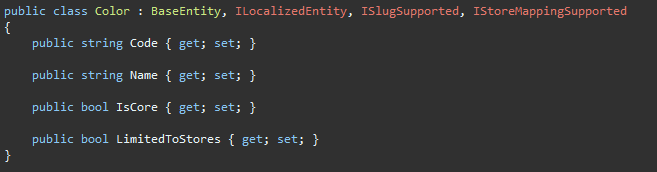
I create my domain class as usual. This one is straight forward.
Service Class
I need to create my color service that will utilize the domain object, I won't bother with the actual implementation but it looks something like this. It was fairly a Copy and Paste from Nop.Services.Catalog.ManufacturerService with Find and Replace job.
This class sits in my Custom Project, in my case, TA.Services.
Don't forget your dependency register, it sits inside the Service call, wherever you put the file in, you register in that project.
In my calling code, I will have to include this in my ctor. I am using the same example as my previous post, my TAImportManager.
SQL Table
We now need to create this SQL table ourselves. I call it dbo.color, but it is probably worth to prefix all the tables to group all the custom tables together, and avoid possible table name collision in future upgrades.
Mapping File
One of the file that is easily missed out in nopCommerce DAL area is this mapping file. If you forget this step, your code will compile but you will get runtime error when you try to access the object.
The entity type <type> is not part of the model for the current context.
We will put the mapping file in a blink blink shiny new project and you may guessed right - TA.Data
In the mapping file, we tell EF which table to look up and any fields mapping etc.
ObjectContext
NopObjectContext - This is the object context that basically does all the database operations. I wouldn't go too technical about this, but the only thing we need to do is to make sure it knows where to find our ColorMap. If you look at this file carefully, in the OnModelCreating(), this line of code is to register all the types within the assembly.
var typesToRegister = Assembly.GetExecutingAssembly().GetTypes()
Since our mapping is not inside the same assembly, we will create our custom NopObjectContext!!
DependencyRegister
We will register everything in the base by calling base method, then register everything in our custom assembly!!
Last but not least, we need to now register our TANopObjectContext in IoC.
We create a new DependencyRegistrar in TA.Data as follow. I copy and pasted the relevant sections from the Nop.Web project. Since we don't use http, I have changed the InstancePerHttpRequest() to InstancePerLifetimeScope().
Add reference
At this stage, if you build and run, you will still get error about entity not found.
The entity type <type> is not part of the model for the current context.
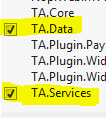
Didn't nop promise to register everything that implement the IDependencyRegistrar? Well, it might help if you tell it to. In the web project, we need to add reference to TA.Data.
Conclusion
As you can see, quite a big circle to do something very simple. The quickest and dirtiest approach would be adding files in the Nop.Data project, but if you are going to use nopCommerce intensively and with prospect of upgrading to future version, I rather take the pain away now.
In this exercise, I have touched no code / logics in the Nop Platforms. In my check-ins, the only thing I am checking into the Nop is Nop.Web.csproj (Added new references to the new projects) and NopCommerce.sln (Added new projects to the solution.
Fear not about passing your peer code review. :)